Upload a document
If you want your agent to answer questions from your own material — a policy document, a price list, an FAQ — instead of guessing, upload it as a knowledge document.- Click Knowledge Base in the sidebar.
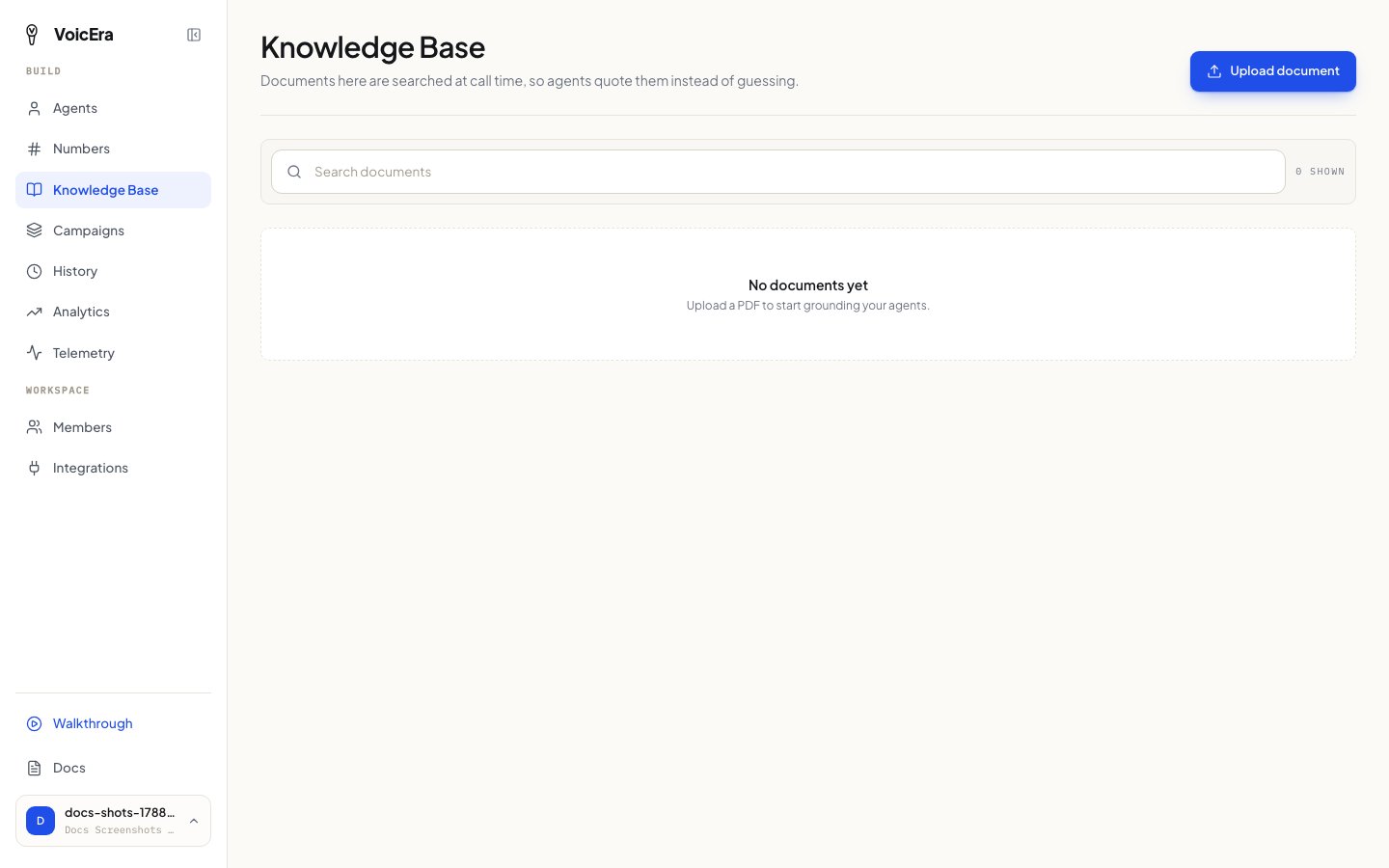
- Click Upload document and choose a PDF (up to 25 MB).
- Wait for it to finish processing — the file shows as Indexing, then Indexed once your agent can use it. If something goes wrong, it shows as Failed.
Check call history
Click History in the sidebar to see every call your agents have made or received — test calls, real calls, and campaign calls all show up here.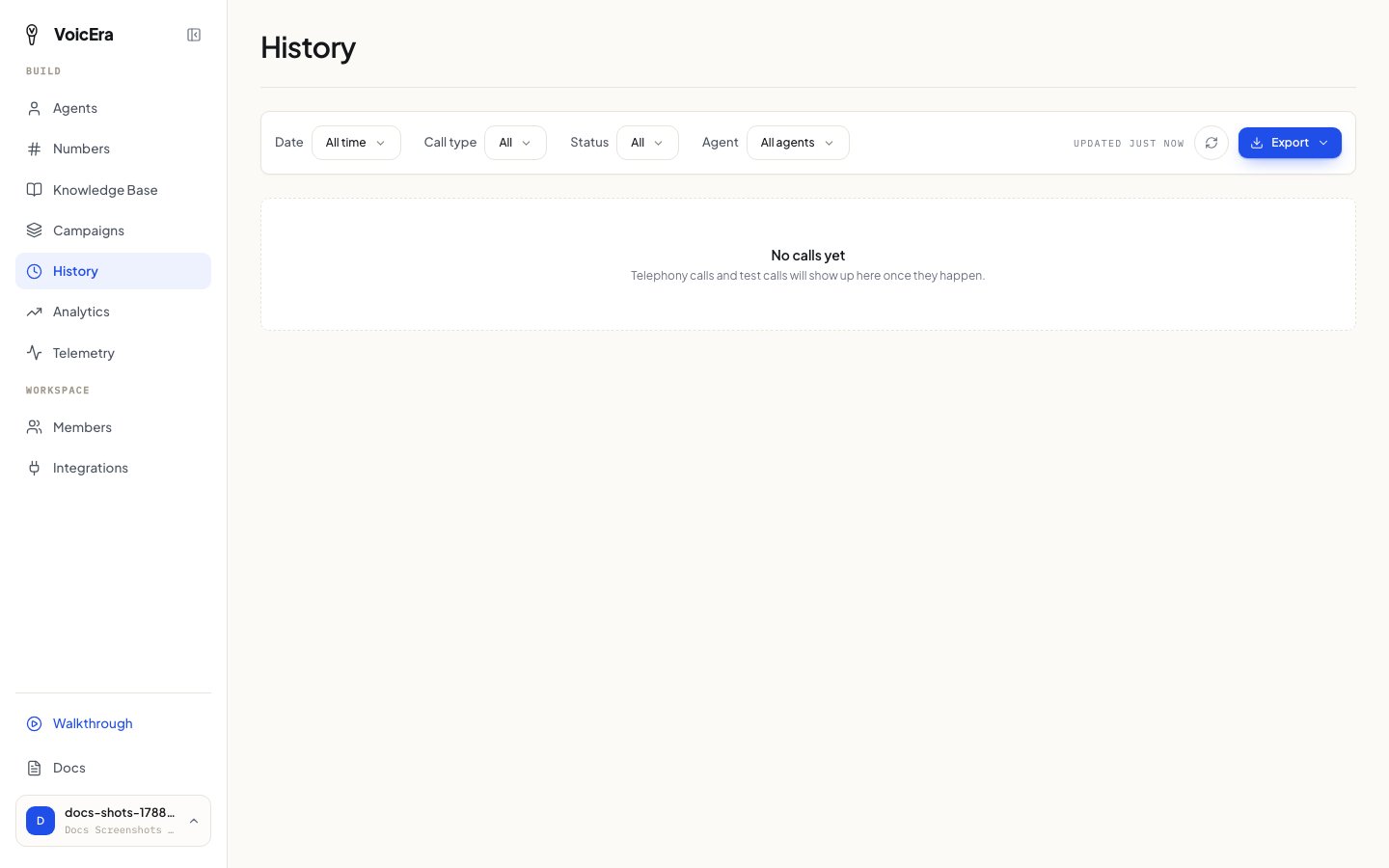
- Listen to the recording
- Read the full transcript
- See how long it lasted and how it ended
Phone numbers are partly hidden in the list for privacy. Opening a call still shows you the details you’re allowed to see.
Invite a teammate
Click Members in the sidebar, then Add member. You’ll get a shareable link — send it to your teammate, and they set their own password when they open it and join your organisation.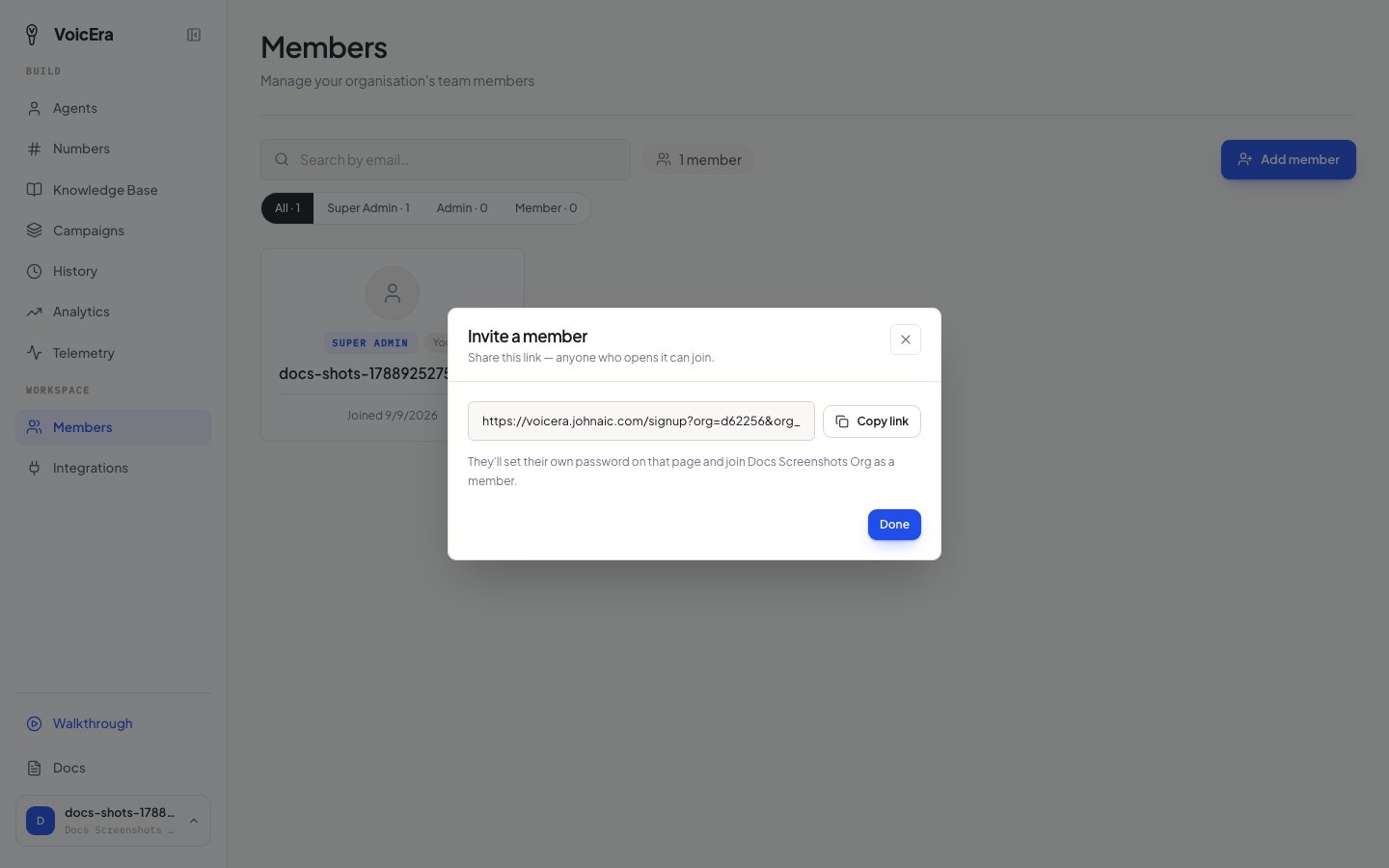
Switch organisations or update your profile
Click your name at the bottom of the sidebar to open Account. From there you can update your details, or switch to a different organisation if you belong to more than one.If something isn’t working
Where to go from here
You’ve covered the core of running VoicEra day to day. For anything not covered here:- Common problems — a wider troubleshooting index
- Ask whoever manages your VoicEra installation — some problems (server logs, provider outages) need their access, not yours