Prepare your contact list
Your list is a CSV file (a spreadsheet saved as “CSV” from Excel, Google Sheets, or similar). It needs:- A column named
phone_number— every number must include the country code with a+in front, like+91987654XXXX. - No duplicate numbers.
- Any other columns you want — a name, an account number, whatever’s useful. Your agent’s script can reference these while calling, so it can say something like “Hi Asha” instead of a generic greeting.
If your agent’s script should mention a column like
customer_name, someone technical needs to add it to the agent’s configuration first — see Agent configuration.Create the campaign
- Click Campaigns in the sidebar.
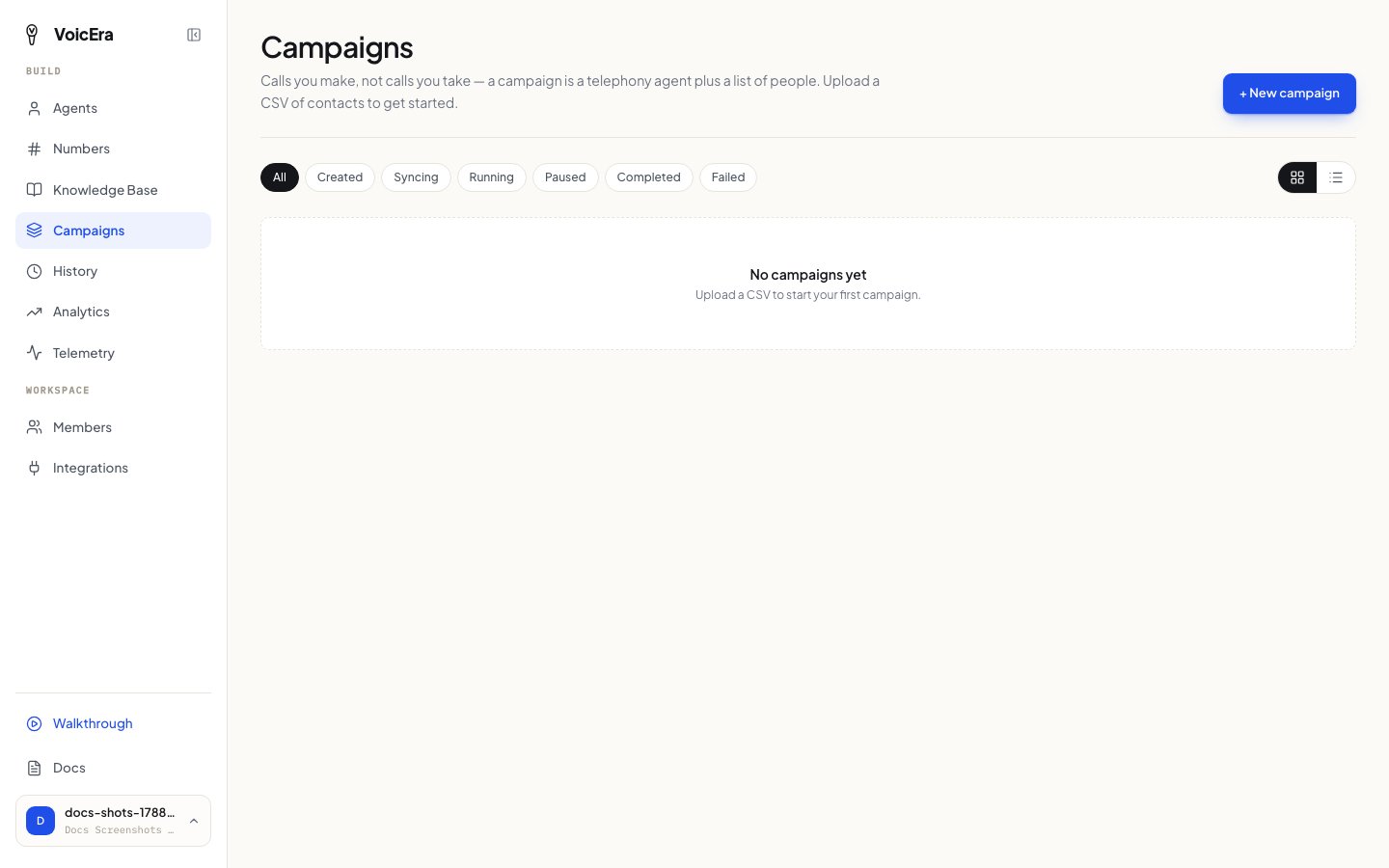
- Click New campaign, give it a name, and pick which agent should make the calls.
- Upload your CSV — you’ll see a preview so you can check the numbers look right before continuing.
- Save.
Start it, and keep an eye on it
Once created, a campaign sits ready until you press Start. While it’s running, the campaign screen updates on its own — you’ll see live progress as each call goes out. You can:- Pause — stop dialling, pick up again later exactly where it left off.
- Resume — continue a paused campaign.
- Redial — retry the numbers that didn’t connect.